
How to Submit Daily Job Logs
Purpose:
To give instruction on how to create, track and maintain daily job log documents for proper reporting purposes
Prerequisite:
- Have access to Our Current web site
Who's Responsible:
- All foremen, project managers and project management assistants with responsibility for creation, maintenance and review of site daily job logs
Process:
- How to create a daily job log
- Go to Our Current web site
- Click on Operations/Projects button

-
- Click on Daily Job Log button

-
- Click on Create Job Log button

-
- Select job number from the Job Number dropdown list NOTE: the list will show all active and inactive jobs. You can start typing a job number or job name and the list will auto populate with options to choose also
- Enter date for current daily job log
- Click the Create button
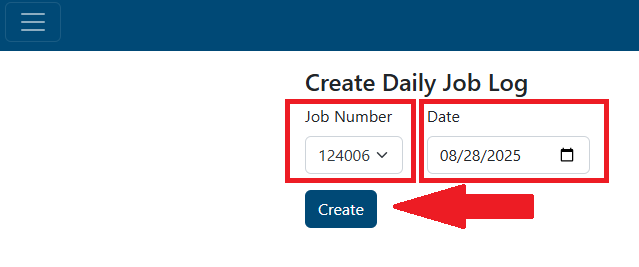
-
- Type in job location
- Attach any documents and pictures NOTE: At least 4 pictures are required to submit a daily job log per day
- Click Choose Files, select files wanted to load
- If there is a specific reason pictures cannot be sent, check the box to acknowledge that pictures were not attached
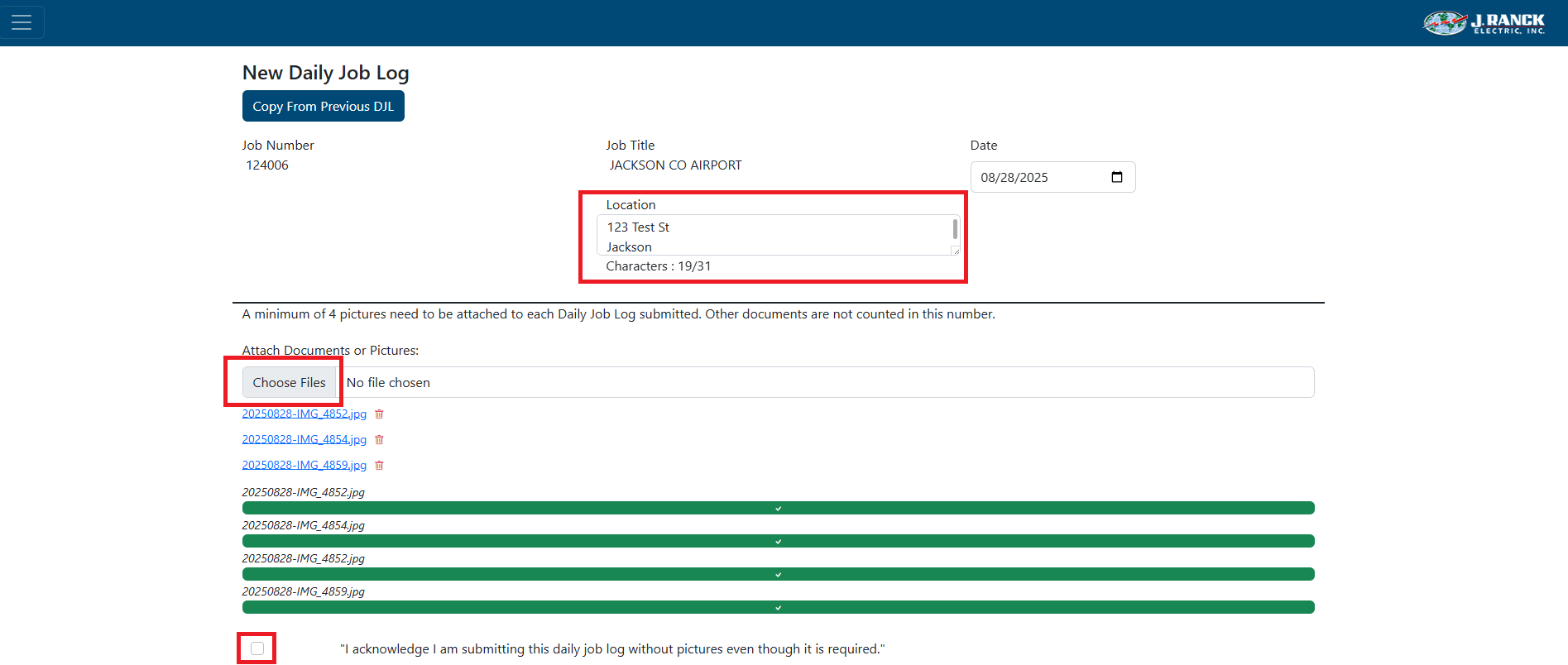
-
- Enter manpower breakdown
- Only active employees are in the dropdown lists. Start typing in name and selection will filter down. This will also keep a count of manpower entered
- Click on Employee and either scroll down to find employee or start to type in their name to filter the list down
- Enter equipment that is on site
NOTE: - Only active equipment will be listed in the dropdown list
- Click on Unit Number and either scroll down to find equipment or start to type in unit number or equipment name to filter the list down

-
- If there was an accident and accident form was filled out, click the check box for Accident form? and enter explanation