Using Shared Printers
First Time Setup
Computer Setup
YOU ONLY HAVE TO DO THIS ONCE
- Open the
Kyocera Cloud Print and ScanApplication
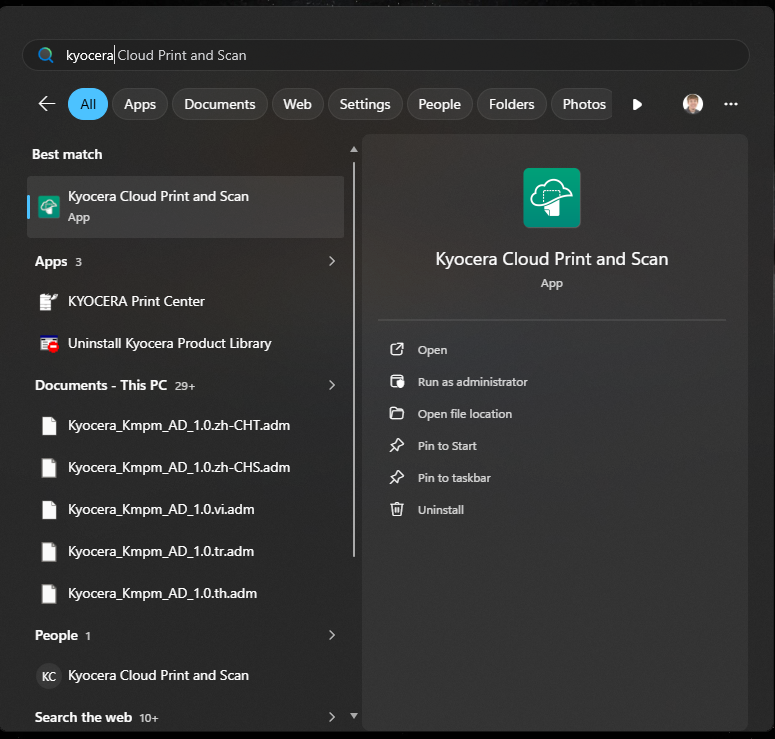
- You can find it on your desktop or by searching for
Kyocera Cloud Print and Scan
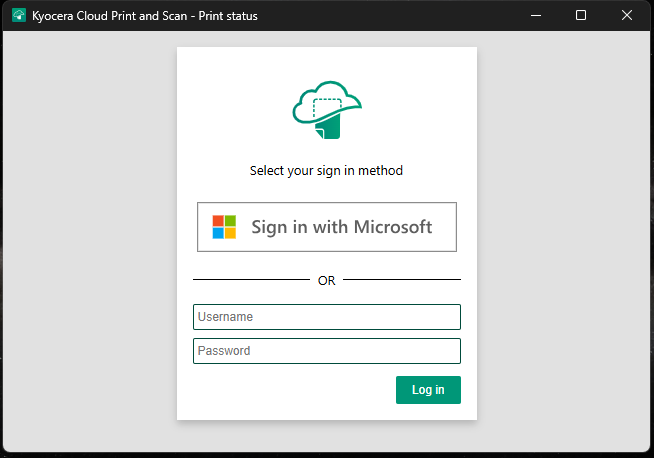
- A window will open asking you to login if you are not already signed in
- Click
Sign in with Microsoft
- Your browser will open to the usual Microsoft/JRE sign-in page
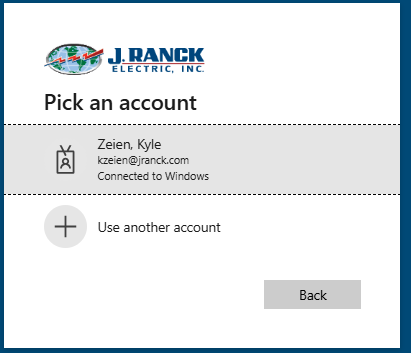
- Sign in to your account and then return to the app
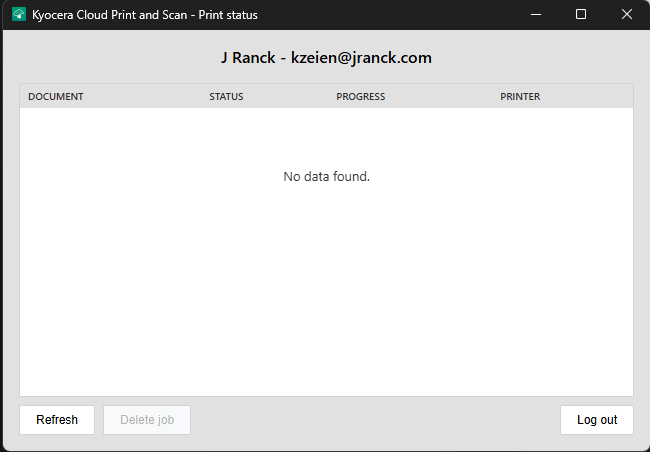
- You should now see a window similar to this
Printer Setup
YOU ONLY HAVE TO DO THIS ONCE. YOU CAN PERFORM THESE STEPS AT ANY PRINTER WITH A BADGE READER. THIS WILL CONFIGURE YOUR BADGE FOR ALL PRINTERS.
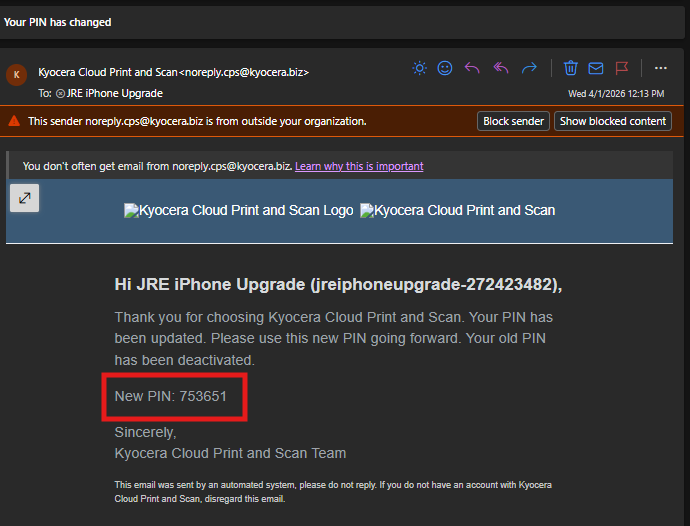
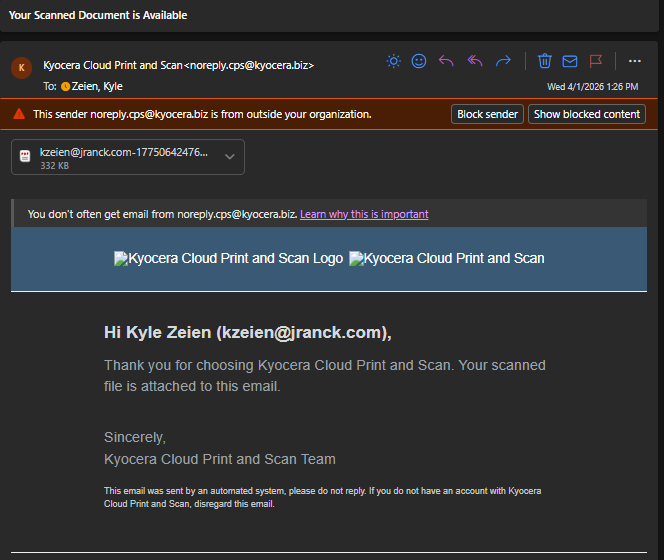
- Locate the email from
noreply.cps@kyocera.bizcontaining your PIN and write it down for a later step
- Scan your badge on the badge reader
- The printer will display
The ID card is not registered. Register your ID card?
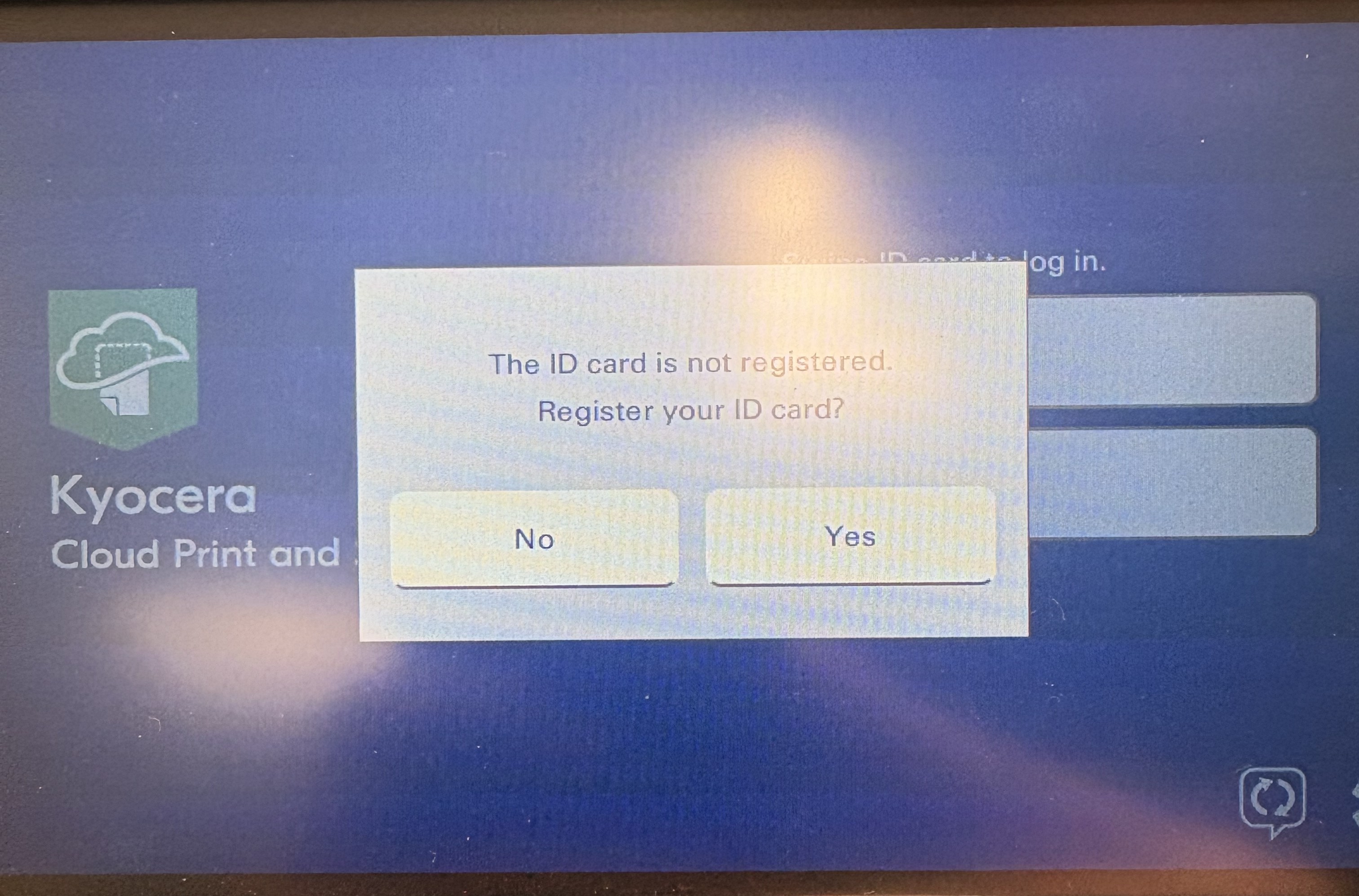
- Tap
Yes - Enter your PIN from the email and then tap Enter
- You will get a notification that the card has been registered. This allows you to use your badge on any printers that have a badge reader
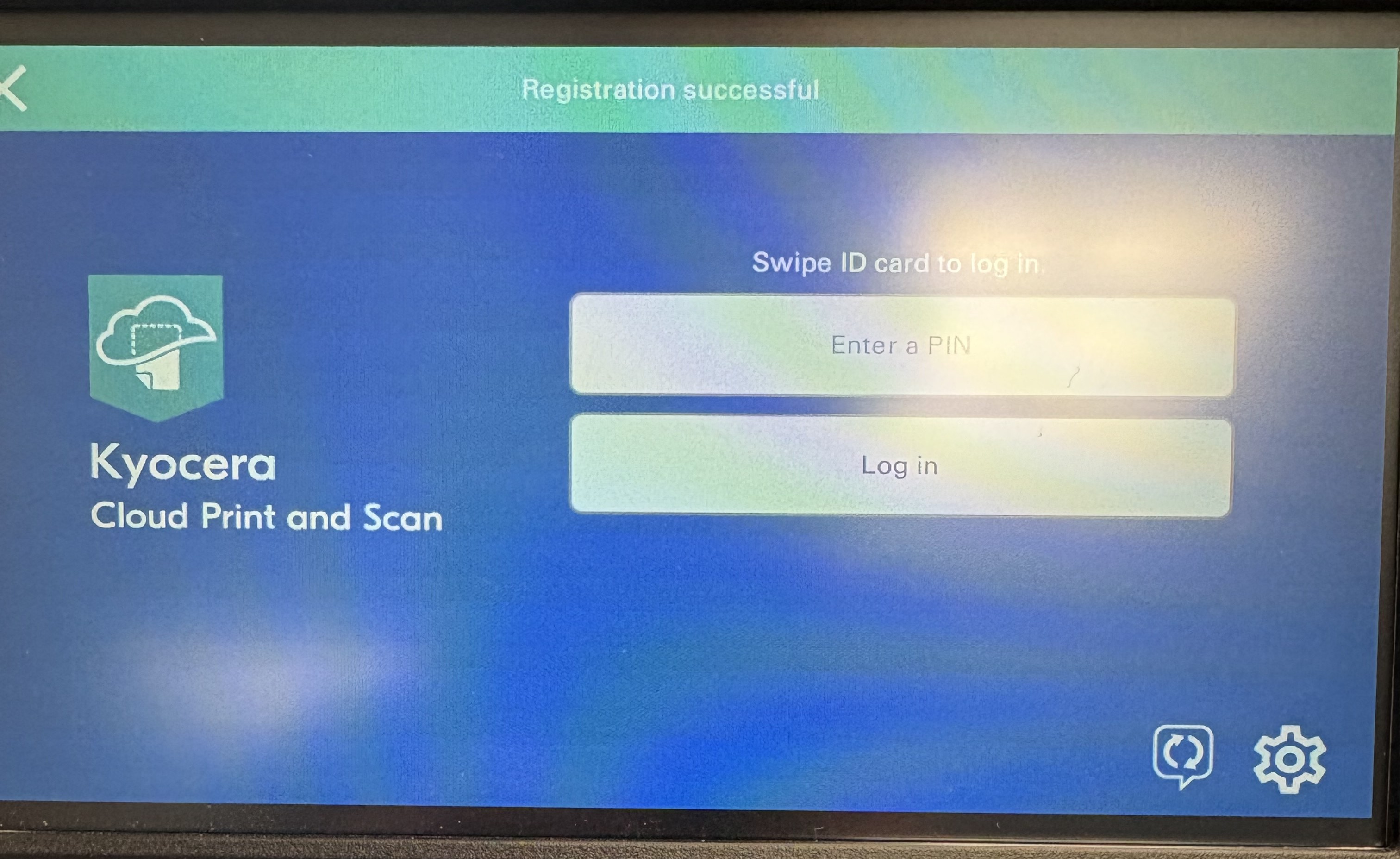
- You can now scan your badge to access the Kyocera Cloud Print and Scan application on any printer that has a badge reader
Printing
- Select the printer named
Kyocera Cloud Print and Scanand then click Print
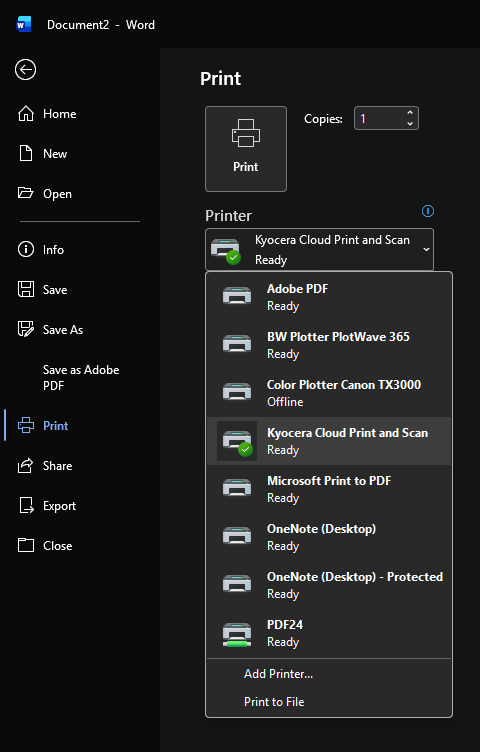
- You can now go to any one of the shared printers
- Scan your badge
- Tap on
Kyocera Cloud Print and Scan
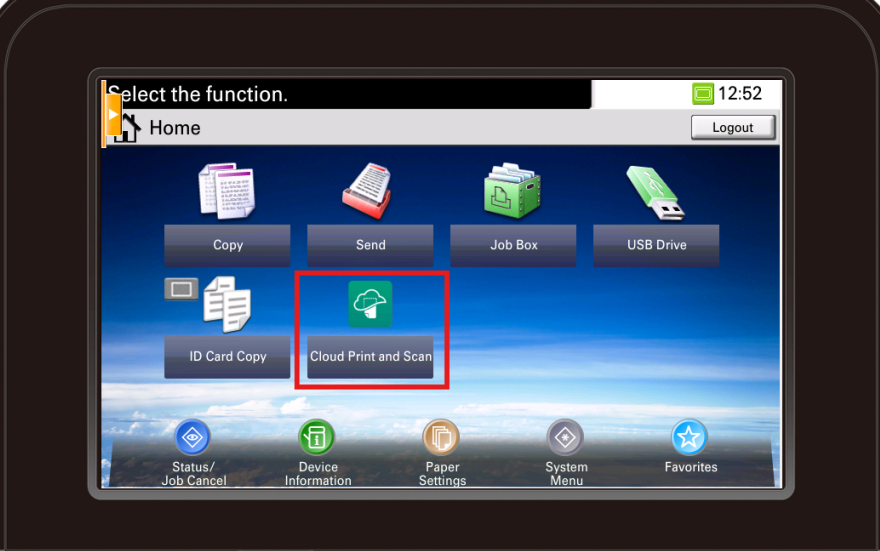
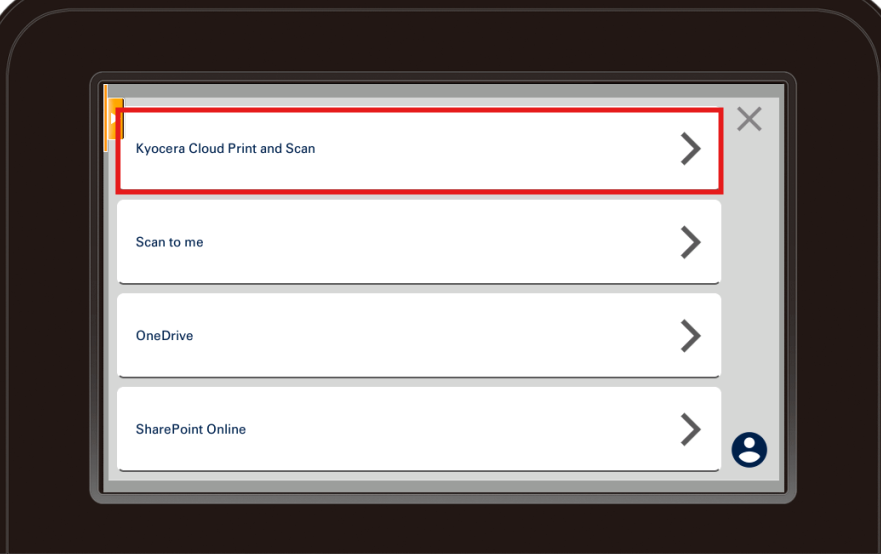
- Tap on your document(s) and then tap the printer icon
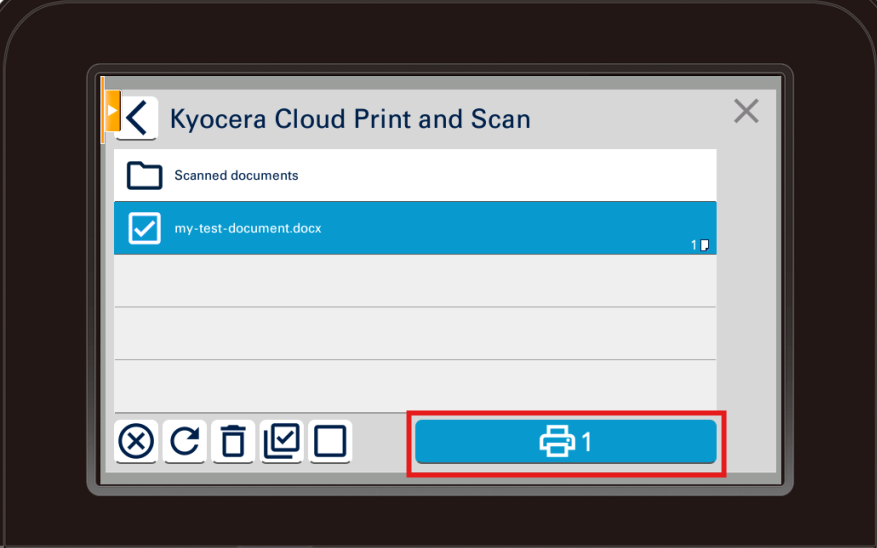
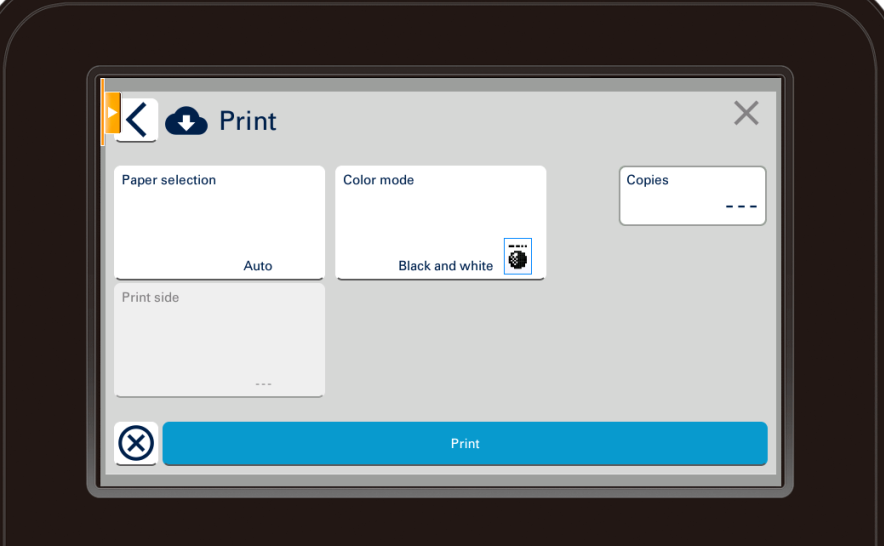
- Change any print settings you desire
- Tap Print
Scanning to Email
- Scan your badge
- Tap on
Kyocera Cloud Print and Scan
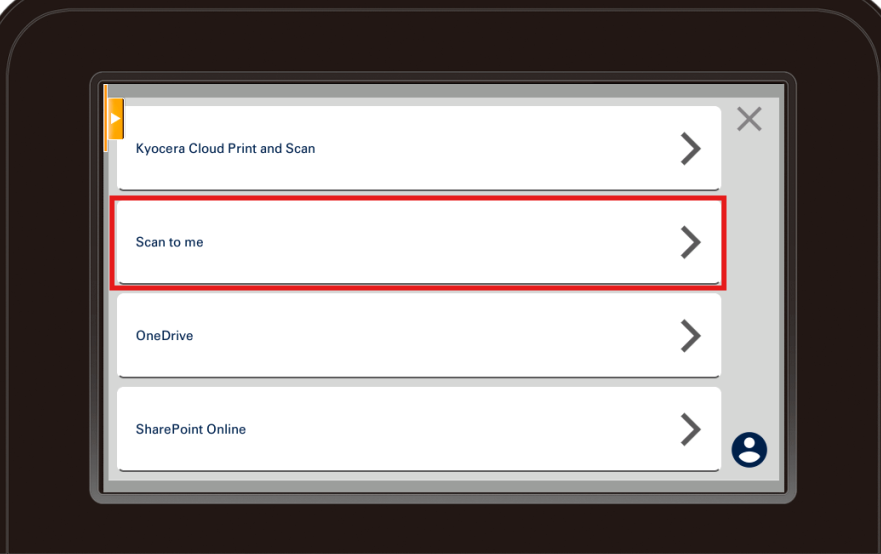
- Tap
Scan to me
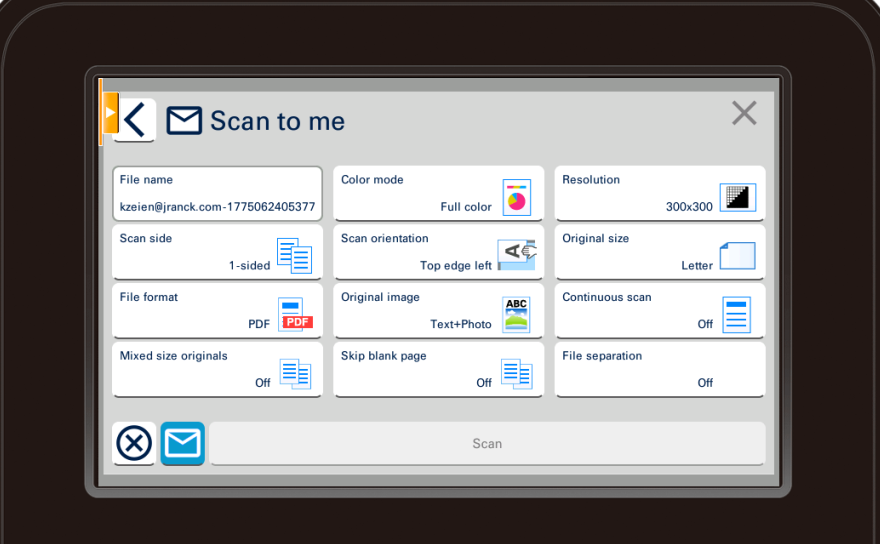
- Select your desired scan settings
- Tap
Scan
- You will receive an email from
noreply.cps@kyocera.bizwith the document attached
- If the file is larger than 10MB, the email will not include the attachment and will instead contain a link to the document
How to Find/Reset Your PIN
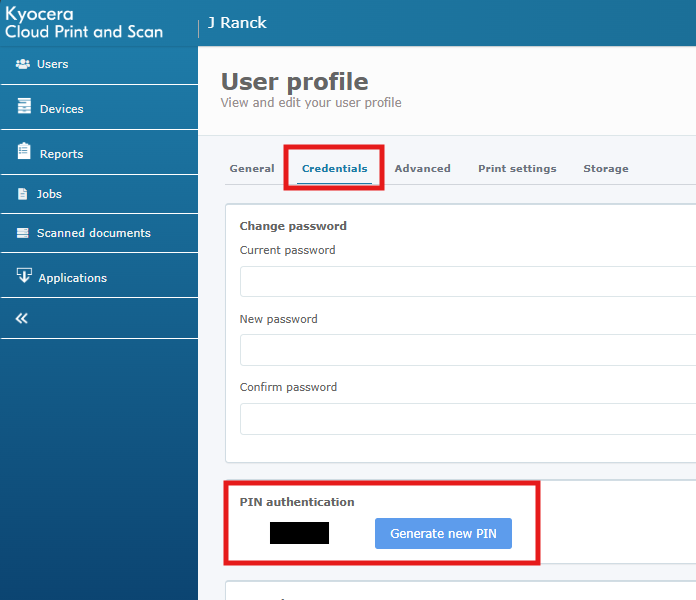
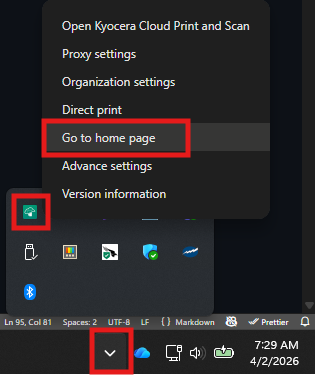
- Go to the Kyocera Web Portal or right click on the Kyocera app in your system tray and click
Go to home page
- Log in with your Microsoft/JRE account
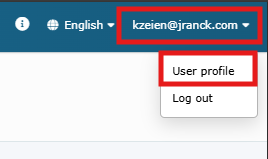
- In the top right corner of the page, click on your email address
- Click
User profile
- Click the
Credentialmenu item - Your PIN is displayed below and also gives you the option to generate a new PIN