How to Submit Safety Trainings
Purpose:
Provide employees the basic steps to use and complete submission of required safety trainings
Prerequisite:
- JRE account and password
Who's Responsible:
- All employees
Process:
- How to View Safety Trainings
- Navigate to Safety Trainings app on Our Current, located on the Safety page
- Click on View Safety Trainings button

-
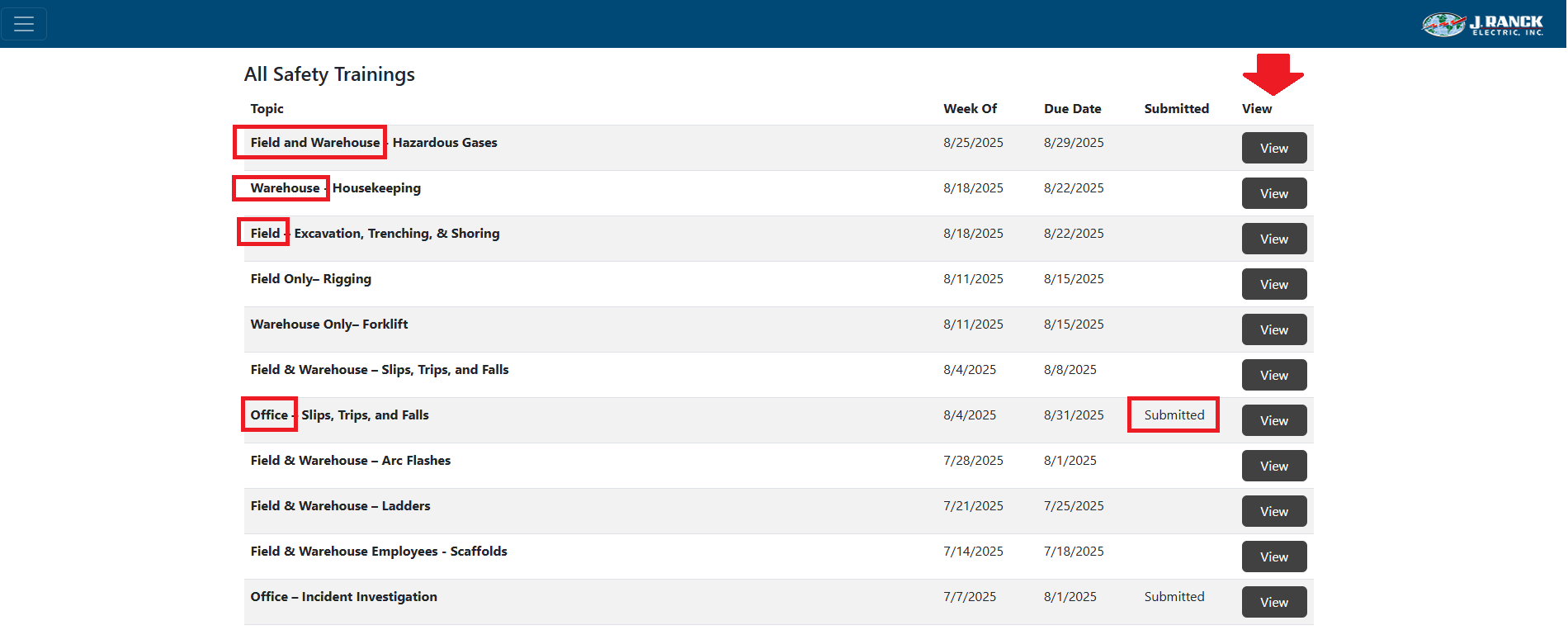
- Safety trainings that need to be completed are listed under All Safety Trainings NOTE: The topic column will indicate Field, Warehouse, or Office. You only need to complete the trainings for your area (i.e. office employees only need to complete trainings identified with Office in the topic name)
- The trainings that have been completed will indicate that the training has been "Submitted" in the Submitted column
- You can complete, review or amend a training by selecting the "View" button
- How to Complete a Safety Training
- Navigate to the safety training you wish to complete, view or amend by clicking on the "View" button

-
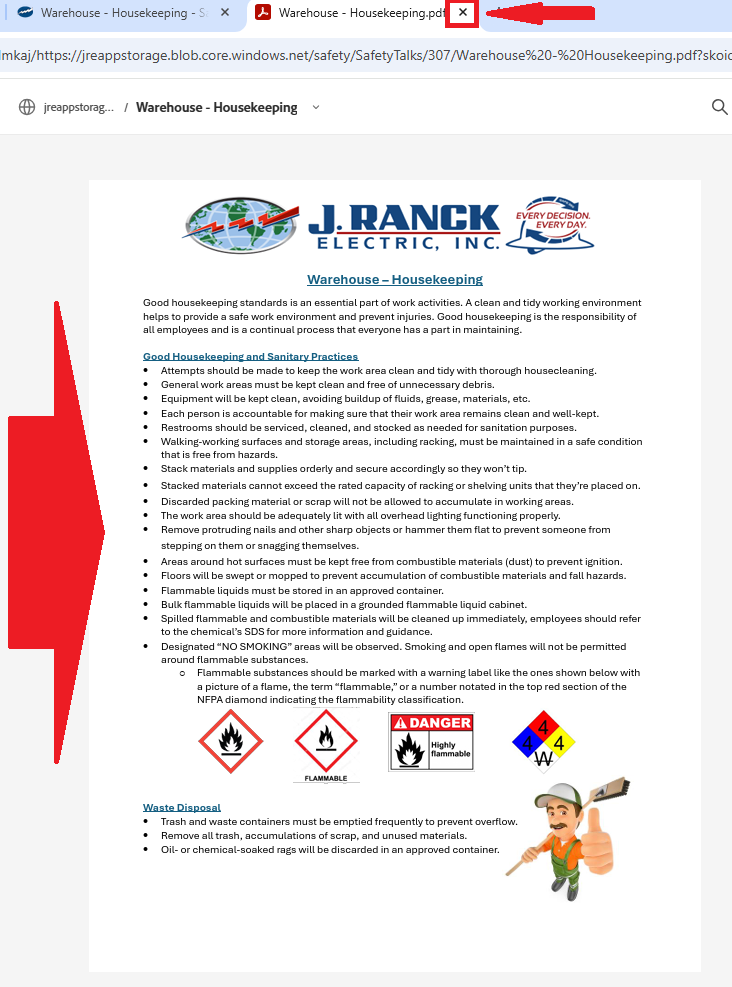
- At the top of the page, click the topic title link or the Attachment link to view the associated training

-
- Cover the information in the training document
- Once done, close the training document
-
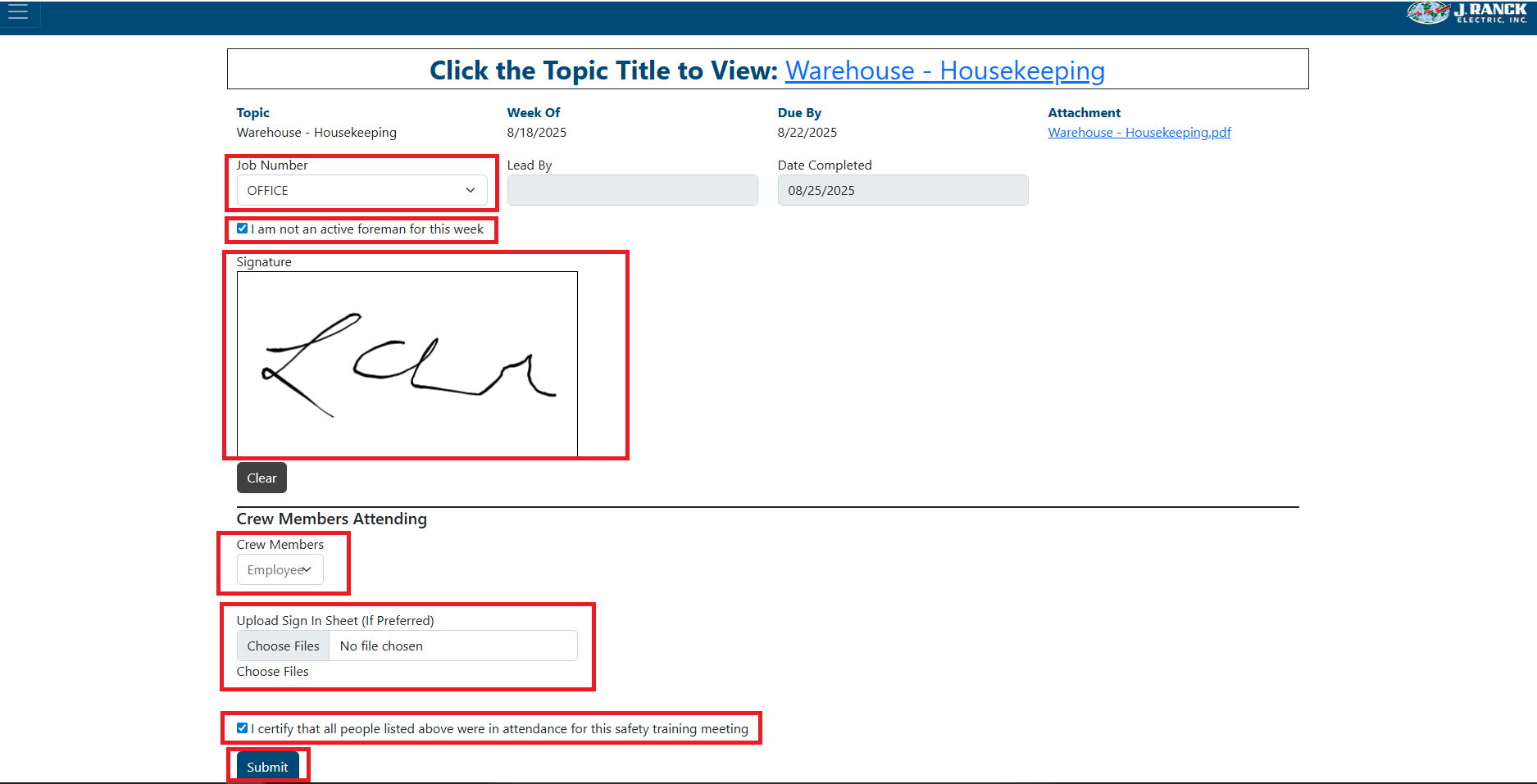
- Select job number, PREFAB, SAFETY, OFFICE, PREFAB WAREHOUSE, or WAREHOUSE from the Job Number selection list
- LEAD BY and Date Completed will be filled out automatically
- For office and warehouse employees, check the box indicating that "I am not an active foreman for this week"
- Sign your name in the signature box
- For any crew members that were a part of the safety training, select their names from the "Employee" selection box. You can enter a partial name or title to filter the selection NOTE: You can optionally upload a scan of a sign-in sheet
- Check the box to certify that everyone listed was in attendance
- Click "Submit" button