
How to Generate Accountability Site Access Report
Purpose:
To explain how to getgenerate intoan officeaccountability buildingsite locationsaccess and how to arm/disarm the alarm systemreport
Prerequisite:
- Have OBDC configuration set up on electronic device (laptop/tablet) to allow query refresh to pull active employee list from Spectrum
- Have admin access
codesetenteredupintotosecurityreceivesystememailsforwithallexcellocationsattachmentthatfromwillVirtualbeKeypad - Have
byeditemployeeaccess to Share Drive>All Users>MTP>Safety>ACCOUNTABILITY-SITE ACCESS folder - If any of the above items are needed, contact IT
Who's Responsible:
AllSafetyactive employees trying to access office locationsdepartment
Overview:
- All employees must use their badge to access office locations
entranceanddoorsjob sites that arelockedlarge24/7enough to have keypad set ups for accountability in case of safety issues. AlarmEmployees should not piggy back to get into buildings- If badges are lost/misplaced/forgotten, employee can enter their assigned pin code to gain access. This will allow the system
automaticallytodisarmslogatthem6:00asAM,checkingMondayinto-theFridaysite AlarmThissystemreportautomaticallywillsetsshowatwho11:00hasPMcheckedeveryintodaya Alarmssite,dowhat site, and their phone numbers. It will also show anyone that is an active employee, that has notdisarmcheckedautomaticallyintoonaweekends or holidayssite
Process:
EnterEmaillastis4receiveddigitsfromofVirtualsocialKeypadsecurityatnumber8:03 am every morning- Open the Site Access.xlsx excel spreadsheet
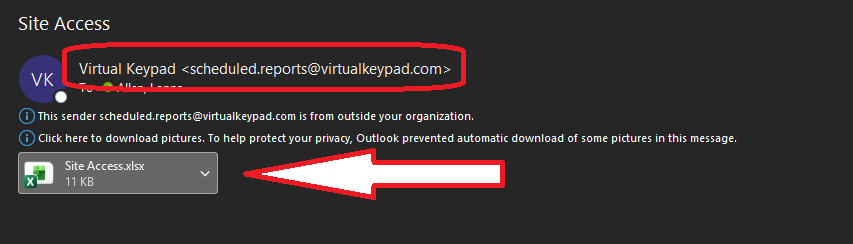
- Click on the Enable Editing button at the top
- Delete columns D (Message), E (User No.), G (Area Name), H (Zone No.), I (Zone Name), J (Door Name), K (Output Name), and
lastLtwo(Count)digitsof- To
yeardointothis left click on thekeycolumnpadletterlocatedtoachoose theentrancewhole column, then right click to open options and scroll down to Delete option and click it. This removes that column from the spreadsheet.
birth - To

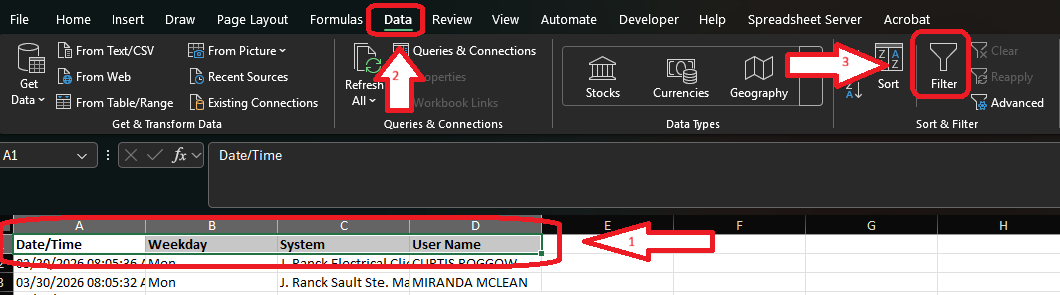
- Click on the headers in column 1 to select them all
- Click on the Data tab at the top of the
location you are trying to enterpage If you are the first person entering the building before 6:00 AM Monday - Friday or anytimeClick on theweekendsFilteror holidays, goicon totheputsecurityfilterskeypad located insideacross thedoor,headers
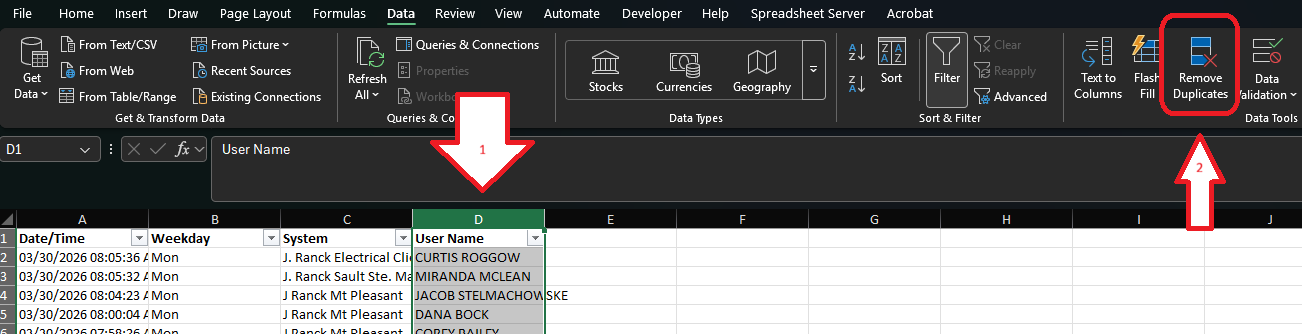
- Left click on column D to select the entire column
- Click on Remove Duplicates option in
lastthefourtooldigitsbar
- Leave
and thenExpand thenumberselection1.optionThis disarms the security alarm systemchosen IfClickyouRemoveareDuplicatesthebutton
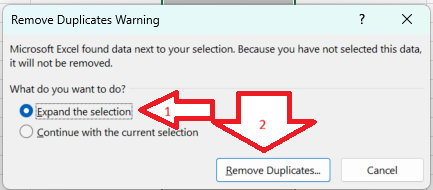
- Click
building,UnselectgoAlltobutton
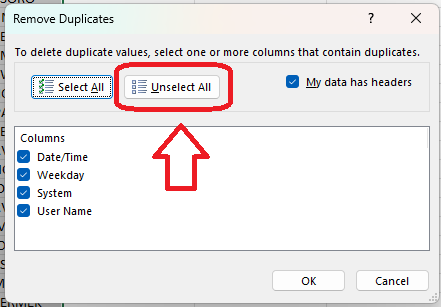
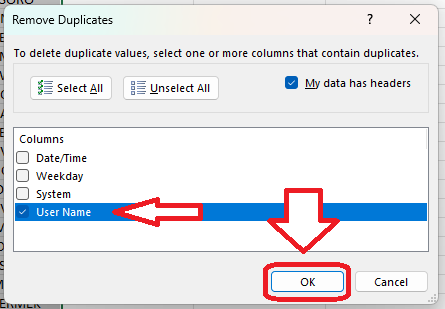
- Click
insideUserdoor, type in last four digits of social security number and then the number 2. This arms the security alarm system.NOTE:Make sureName to check thebuildingbox - Click Ok
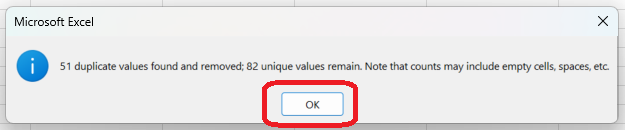
- A message box will pop up with how many duplicates are being removed. Click Ok
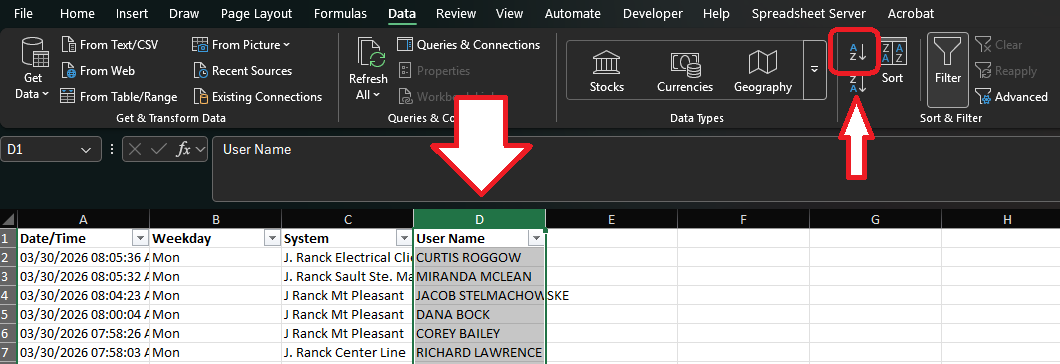
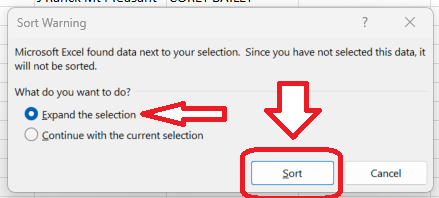
- With column D still chosen, click sort AtoZ option in tool bar
- Leave Expand the selection option chosen
- Click Sort button
- Right click on column D to
verifyselectthatit - Click
areon Cut option - Right click on column C
- Click on Insert Cut Cells option
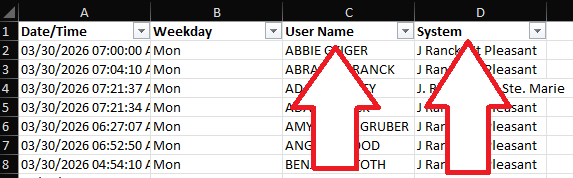
- This moves the
lastUseroneName column to be before the System column
- Open the Site Access Template.xlsx from the Share Drive All Users>MTP>Safety>ACCOUNTABILITY-SITE ACCESS
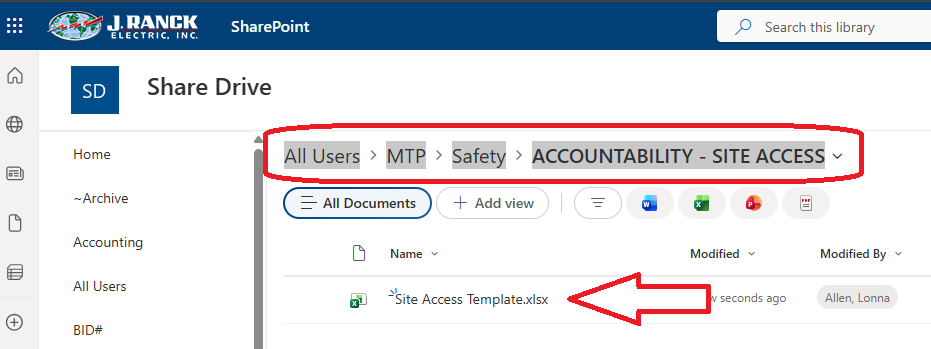
- Click on the Editing button in the
building.upperYourightcancorner

- Click on Open in Desktop option
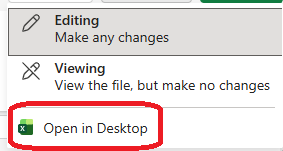
- Click Open Excel button
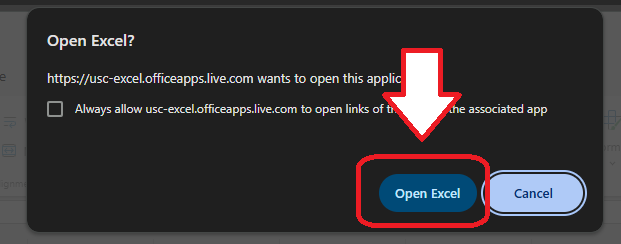
- Click on Enable Content button
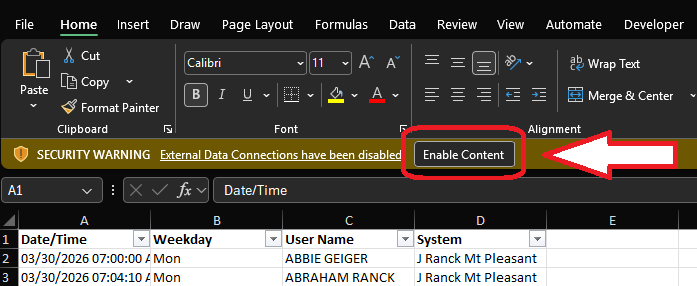
- If prompted with a Security Warning, click on Yes option for Trusted Document
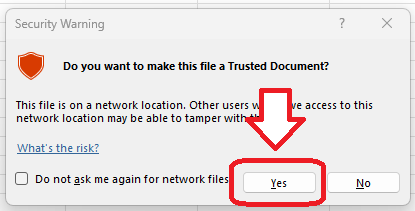
- Go back to the
intercomfirstsystemspreadsheet that was cleansed and highlight columns A - D - Right click and select Copy option
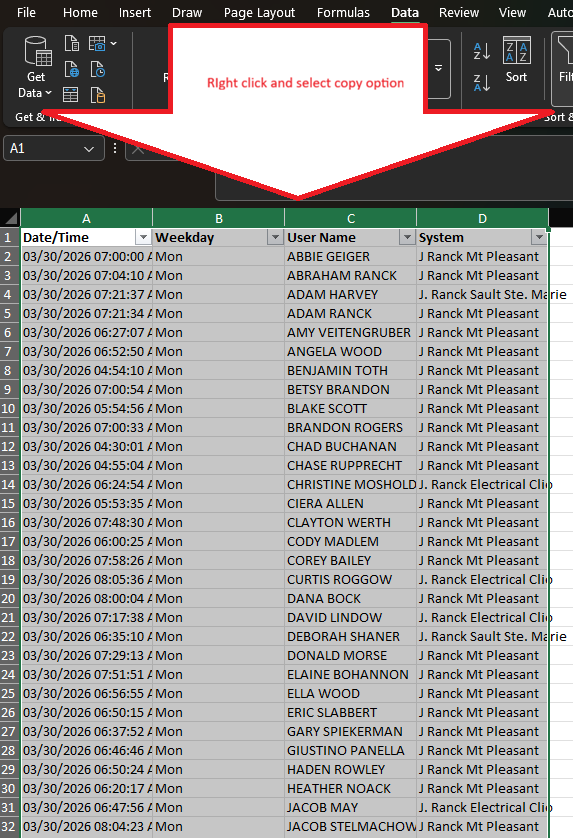
- Move back to the template and make sure the OnSite tab is displaying
- Click on A1 cell to select it
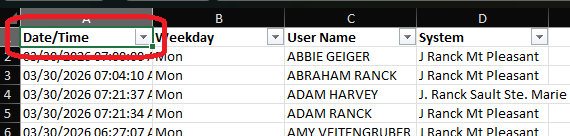
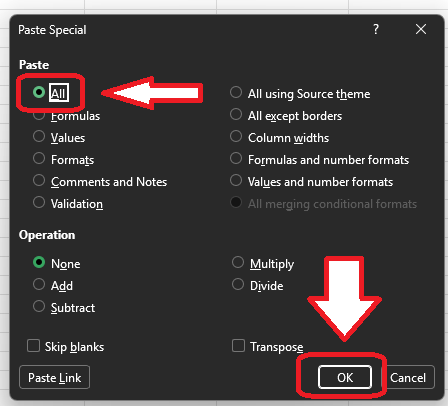
- Right click and select Paste Special option
- Leave All the selection option
- Click Ok button
- Click on the Active Employee List tab in the
Mt.template -
office to state you are leaving and alarming the system. Wait to see if anyone replies that they are still in the building
Troubleshooting:
- Submit a ticket to IT support@jranck.com