How to Clear Browser Cache
Purpose:
To show the ways to clear browser cache for a site when you are encountering Spectrum or other application errors while accessing them in a browser.
Prerequisite:
- Desktop or laptop
Who's Responsible:
- All employees
Process:
- Google Chrome
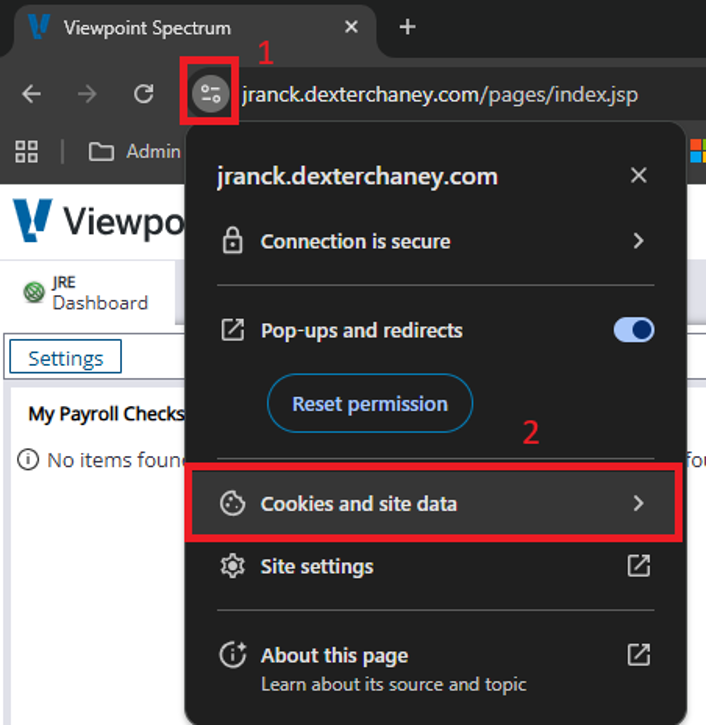
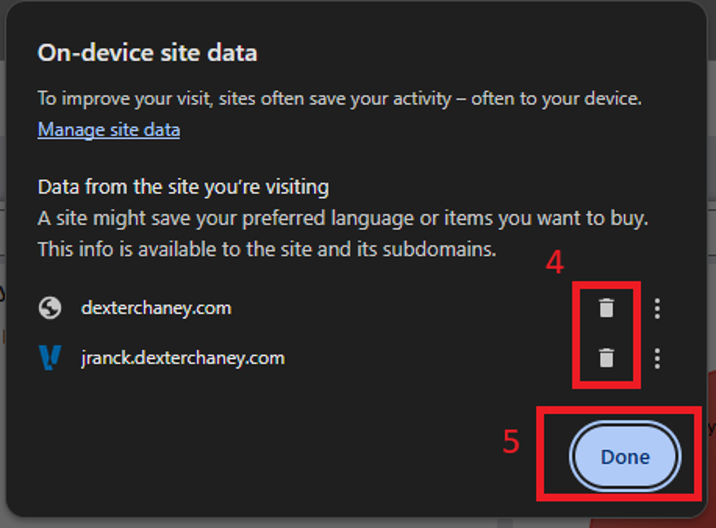
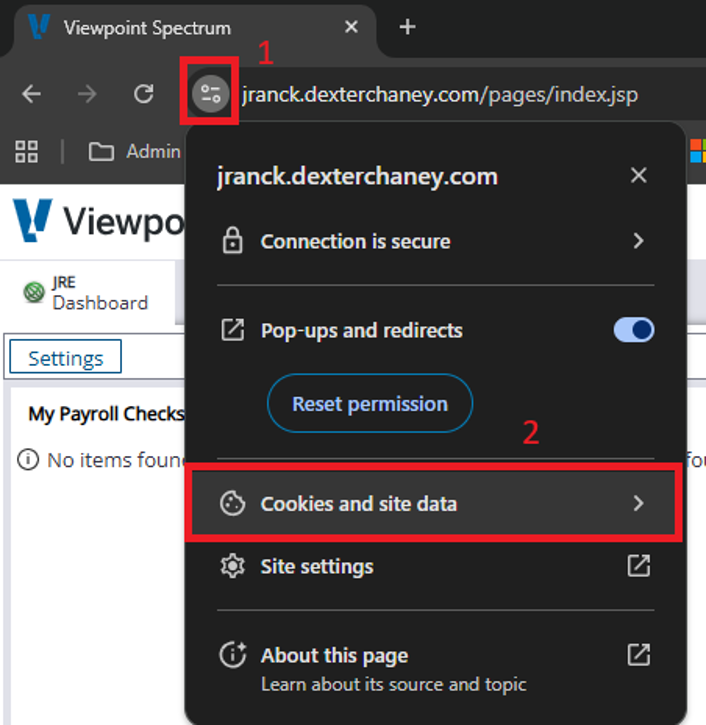
- Click the icon to the left of the URL link to display connection properties and then select the Cookies and site data sub-menu.
-
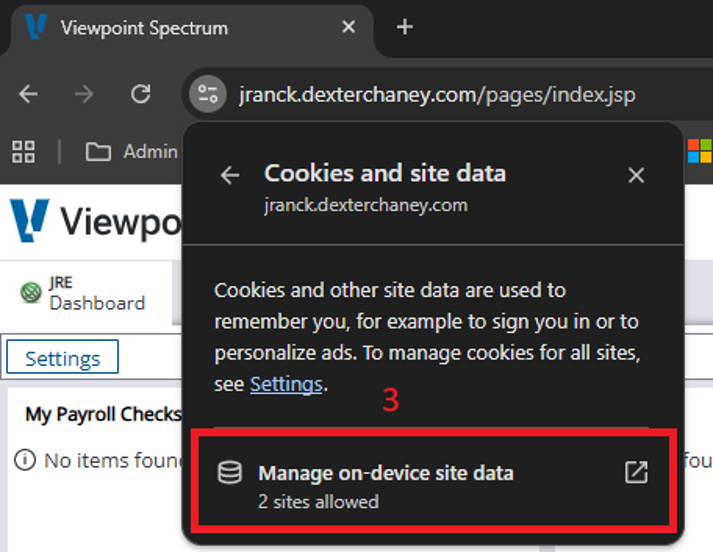
- On the Cookies and site data sub-menu, select Manage on-device site data
-
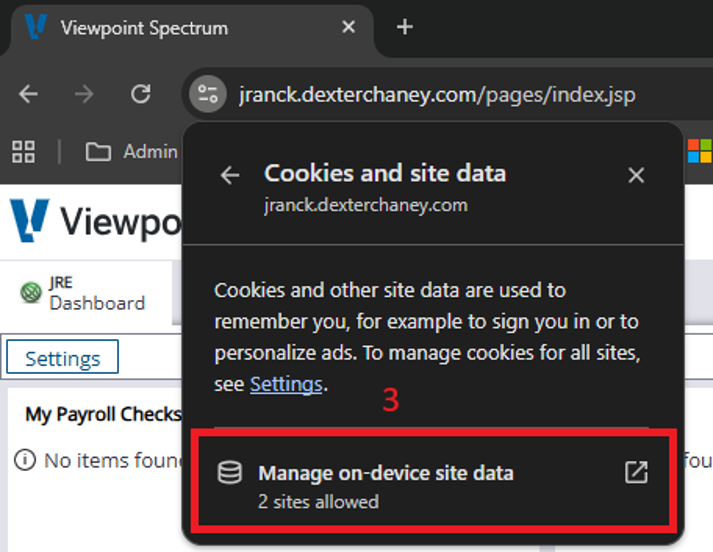
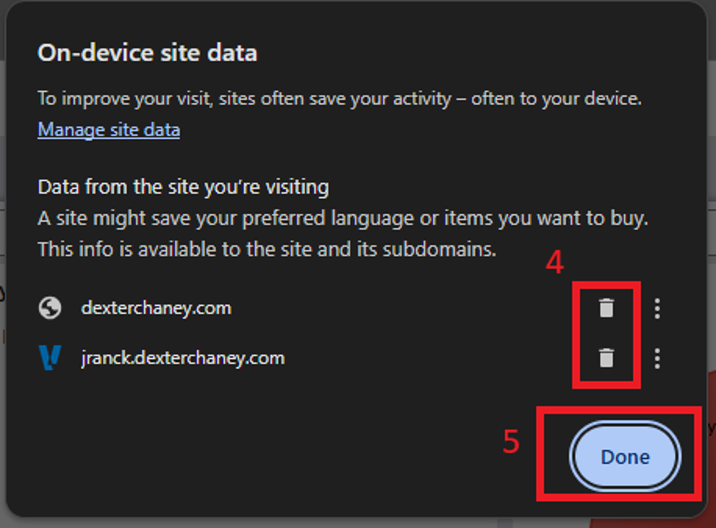
- From the On-device site data menu, select the trash can icons to the right of any site links displayed. Then click the Done button.
-
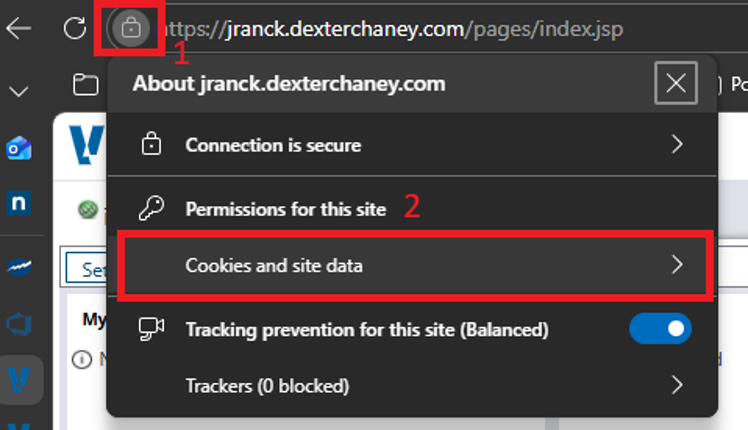
- Microsoft Edge
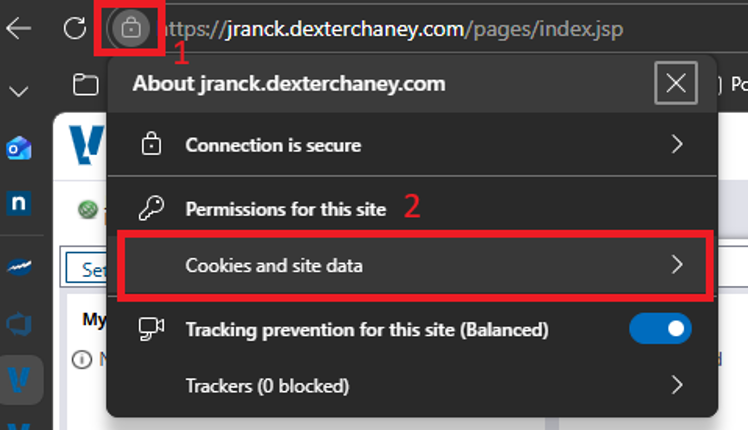
- Click the icon to the left of the URL link to display connection properties and then select the Cookies and site data sub-menu.
-
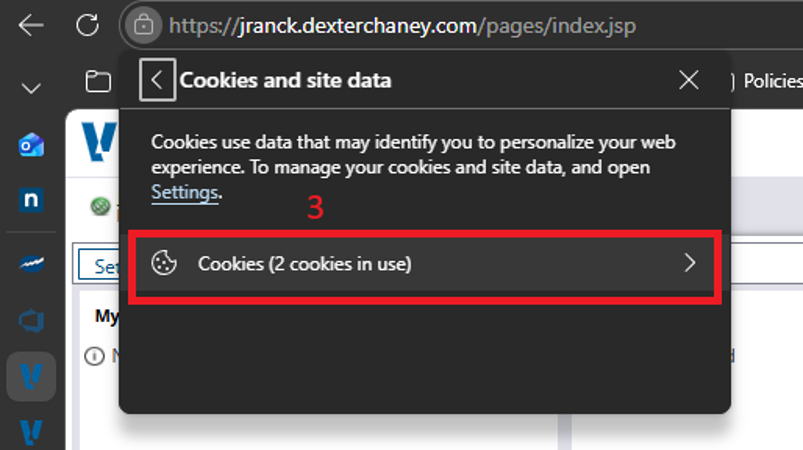
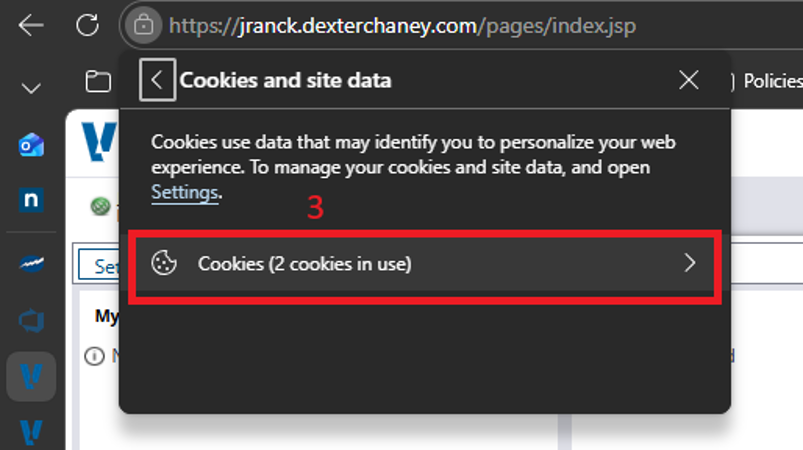
- On the Cookies and site data sub-menu, select Cookies
-
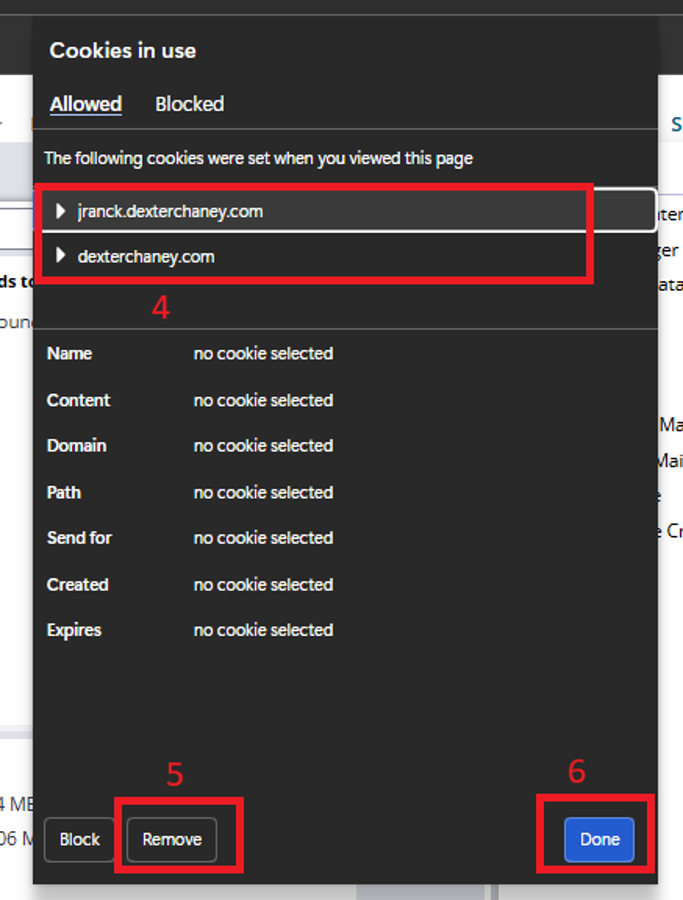
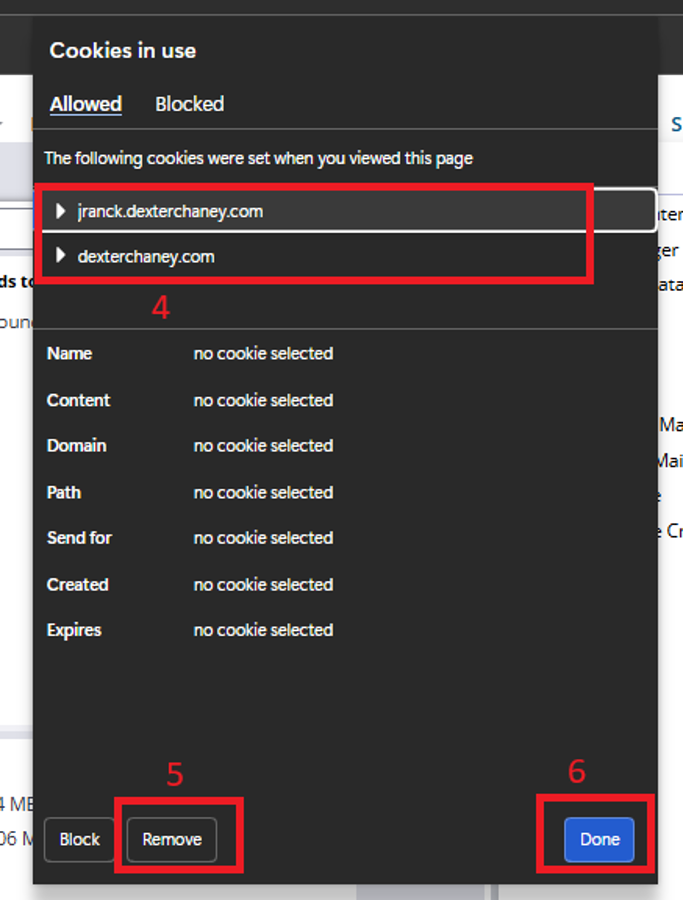
- From the Cookies menu, select the site links displayed to select. Click the Remove button on the lower left. Then click the Done button.
-
- Firefox
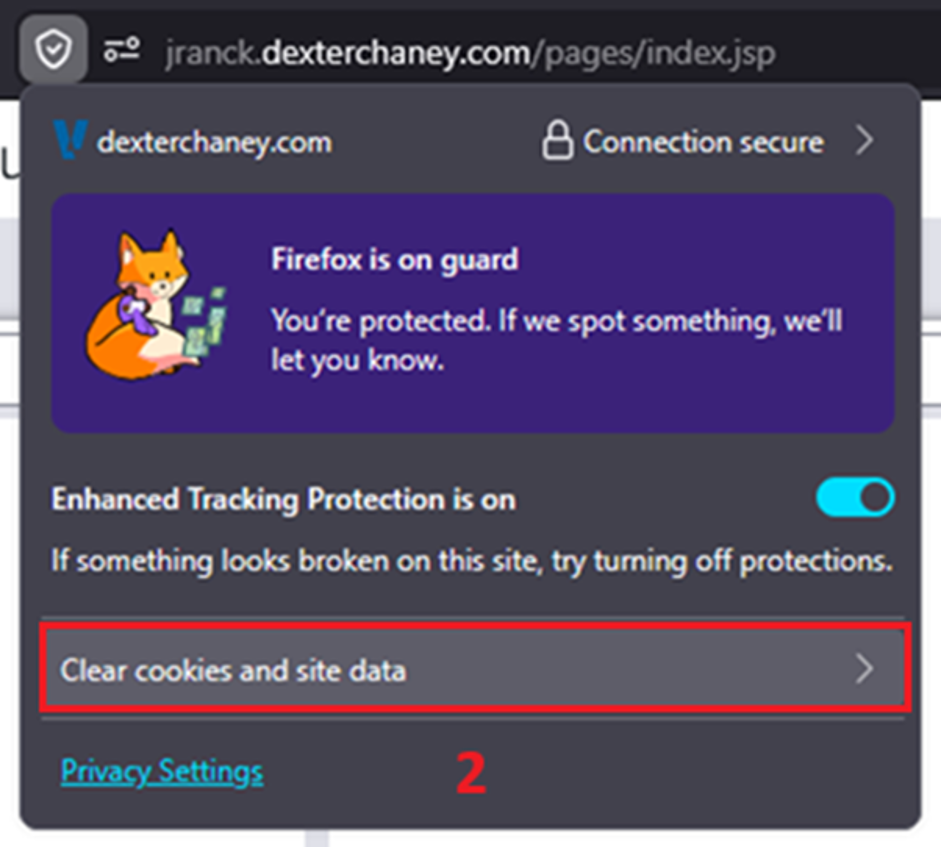
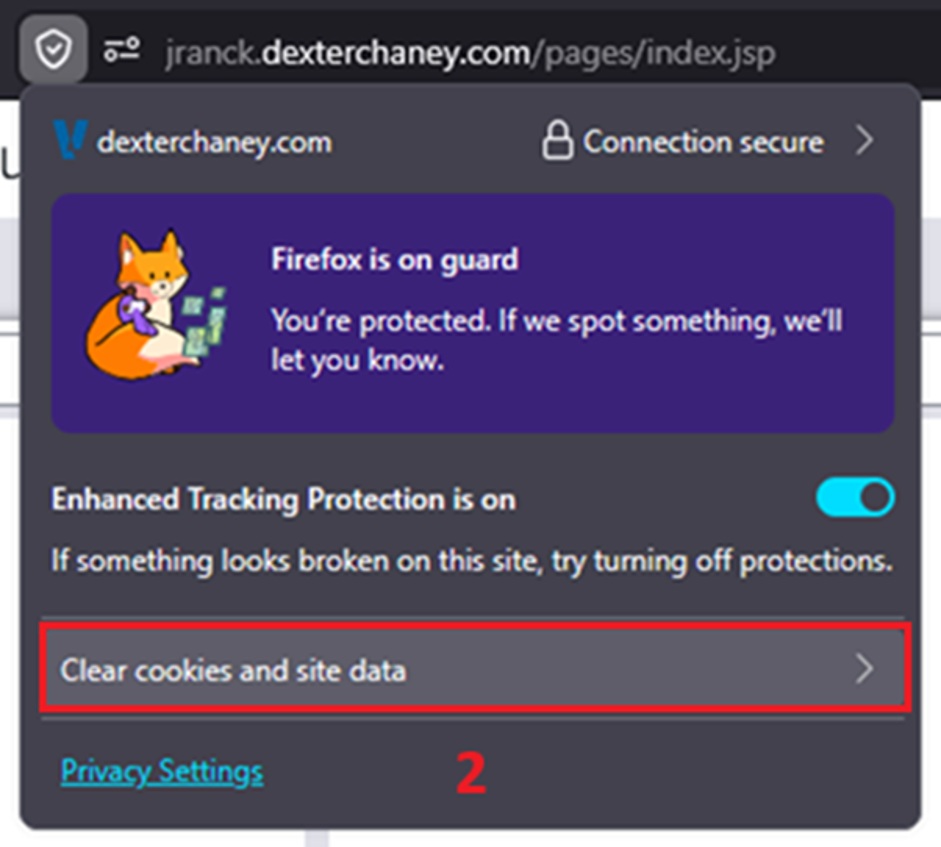
- Click the icon to the left of the URL link to display connection properties
-

- From the Connection settings menu that is then displayed, select Clear cookies and site data
-
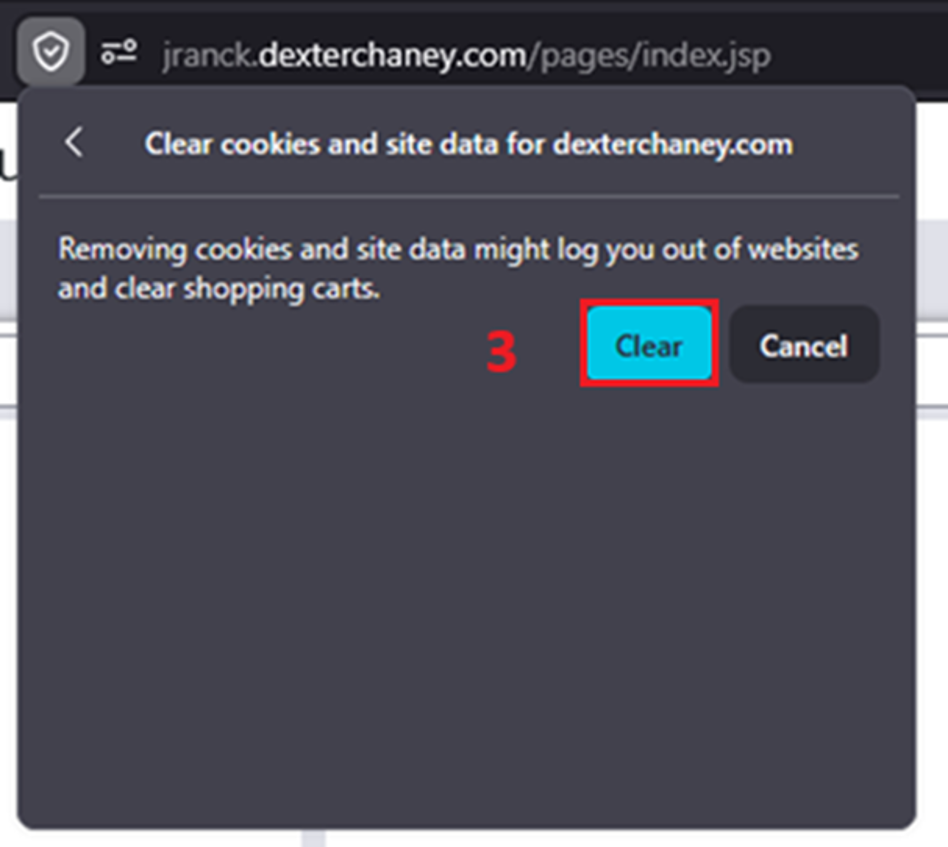
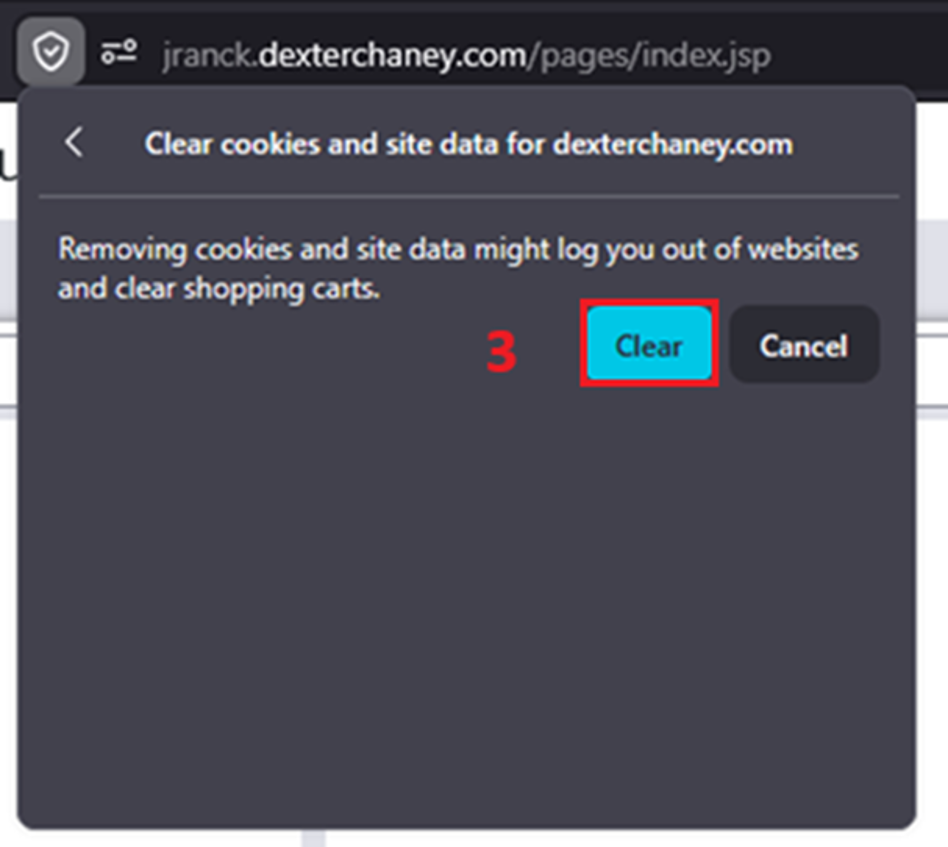
- From the Clear cookies and site data sub-menu, select Clear
-